Timesheet
The Timesheet page is made up of two halves, both pictured below, the submission form and the recent submissions table.
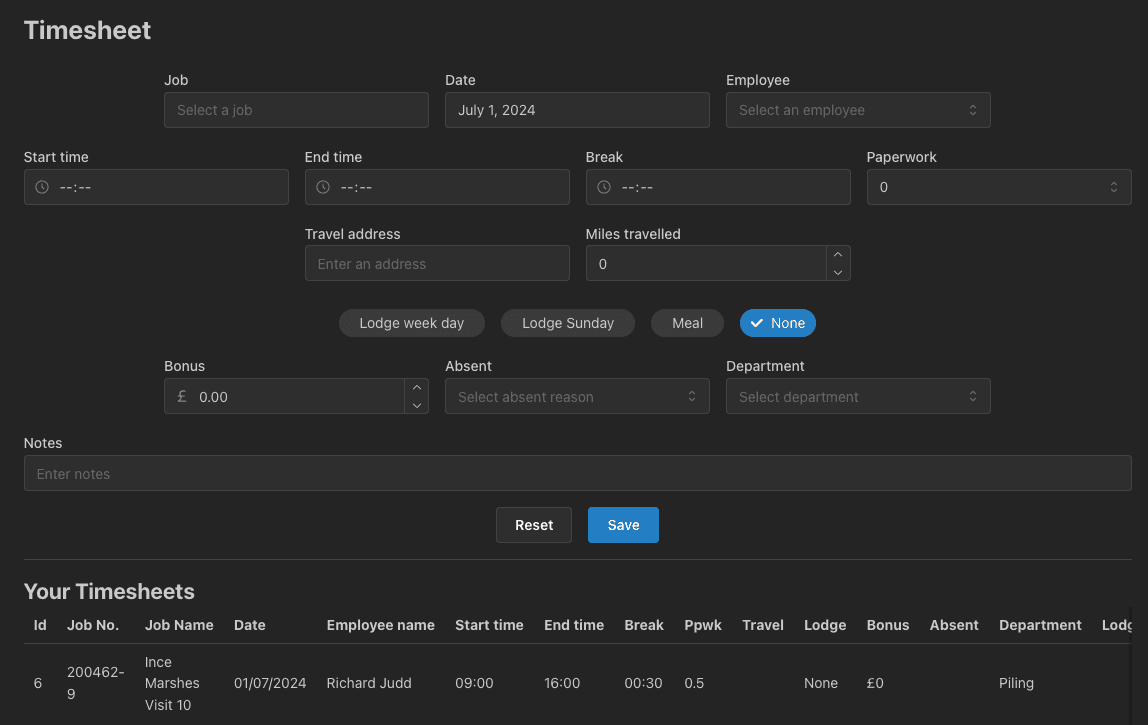
Timesheet form
In the form, each field can be clicked on and details entered. Some fields are compulsory, and some are not. If you attempt to submit an incomplete form, you will be notified of which fields need filling out. Below is some info on each of these fields. You are required to submit the form once for each day you are working.
- Job - Enter the Job Number. This will autocomplete for you. If a job number is missing, please contact the finance department to ensure it has been setup. The job numbers are pulled from NAV nightly, so at most it will take 24 hours for the job to appear in the timesheet app. You must select a job from the autocomplete list. Failure to do so will result in an error upon form submission.
- Date - This defaults to todays date, but clicking in the field opens a date picker for you to choose any date.
- Employee - Enter the name of the employee that this time sheet is for. This will autocomplete. You must select a name from the autocomplete list. Failure to do so will result in an error upon form submission.
- Start Time - Enter the time work started in 24 hour format. The colon is automatically entered for you.
- End Time - Enter the time work finished in 24 hour format. The colon is automatically entered for you.
- Break - Enter the time used for your break in
hh:mmformat. - Paperwork - Select either 0, 0.5 or 1 hours, used for your paperwork time that day.
- Travel Address - Should you be claiming for travel, please enter the address that you travelled to site form.
- Miles Travelled - Should you be claiming for travel, please enter the miles your travelled to site.
- Lodge/Meal - Select one of the 4 buttons to indicate if you are claiming for lodge or a meal allowance.
- Bonus - Enter the ammount awarded to you for your Bonus.
- Absent - Select a reason from this field if you are absent. Submit any start and finish time should you select a value for this field.
- Department - Select the department you were working for on the day of submission.
- Notes - If required, enter any notes pertaining to this submission in this field.
Upon completion of the form, click the Save button. The button will briefly show a loading icon followed by a success notification in the top right corner of the screen.
Next to the Save button is a Reset button. This resets the form back to its default values should you need to start again.
Recent uploads
Upon submitting a timesheet, it will appear in the table below the submission form. This allows you to check that the submission has been entered and recieved correctly. Should you notice any errors, you can click the delete icon in the very last column of the table to delete the entre and start again. Additionally you can click the edit icon to edit the submission and fix and errors. Finally, should you need to submit a further record that is very similar to a previous submission, you can click the copy icon. This will fill the data from that submission into the table ready for you to ammend.