First Time Setup
Android
-
Open a web browser app, and browse to aartime.aarsleff.co.uk (opens in a new tab)
-
Click the
Add AarTime to Home Screenbutton at the bottom of the screen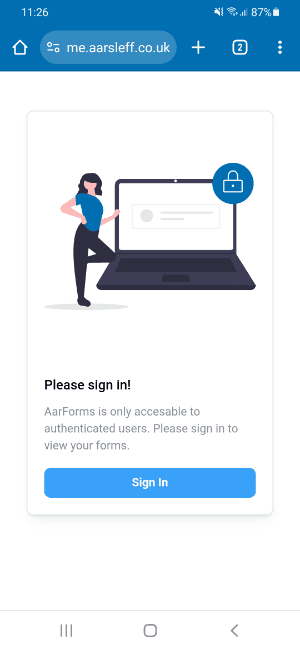
If this button is not present then please press the menu button for your browser, often three dots in the top right corner of the screen, and then the press
Install appbutton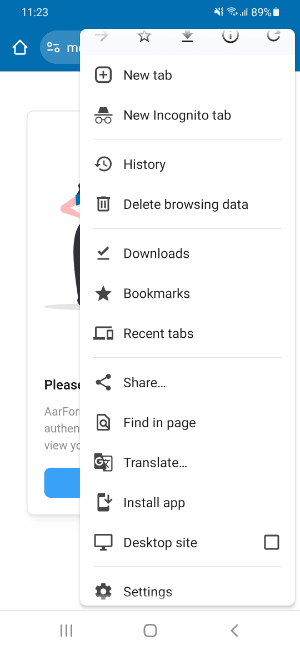
-
Then click the
Installbutton in the pop up window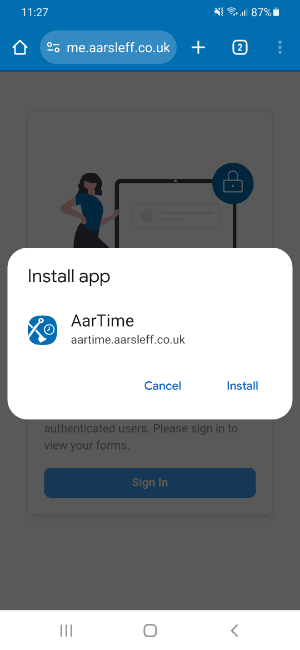
-
A notification will appear saying
Adding AarTime...This will soon change toAdded to Home Screen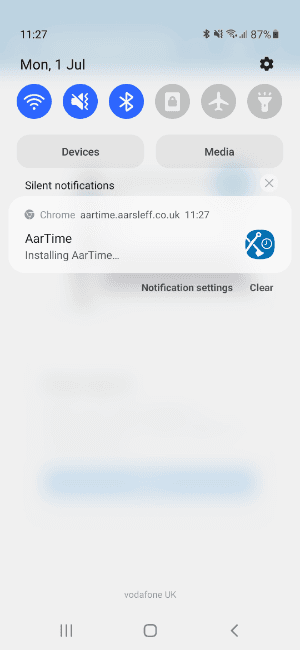
-
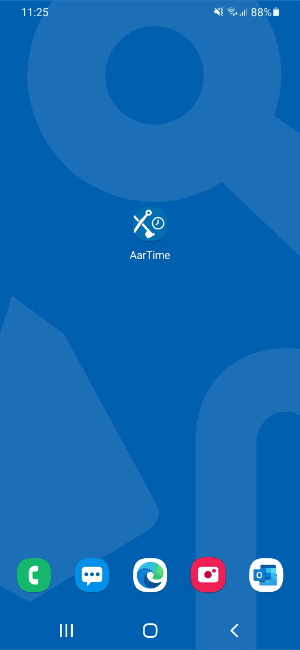
You will then have an app on your home screen called
AarTime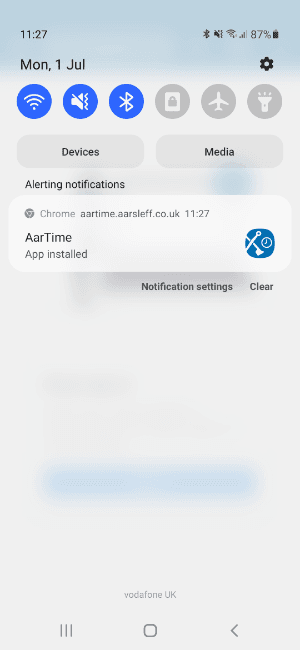
-
After opening this new app, you will have access to the AarTime app
Note. If for any reason you are unable to add the app to your home screen, you can use the app in your browser.
iOS (iPhone / iPad)
-
Open the Safari web browser app, (icon looks like a compass) and browse to aartime.aarsleff.co.uk (opens in a new tab)
-
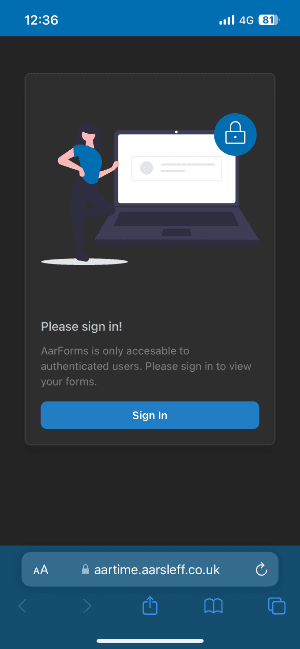
Click the share icon at the bottom of the screen
-
Then click the
Add to Home Screenbutton. You may have to scroll up to find the icon.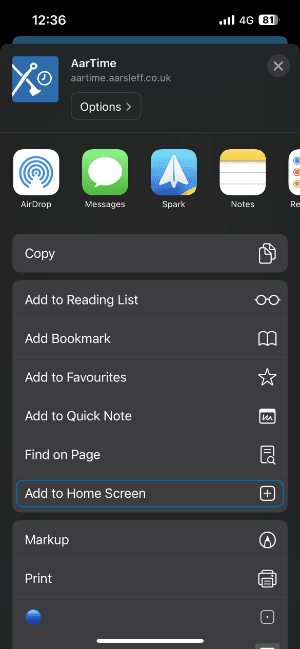
-
Now a new screen will appear. No changes are required so please press
Add
-
You will now have an app on your home screen called Timesheet:
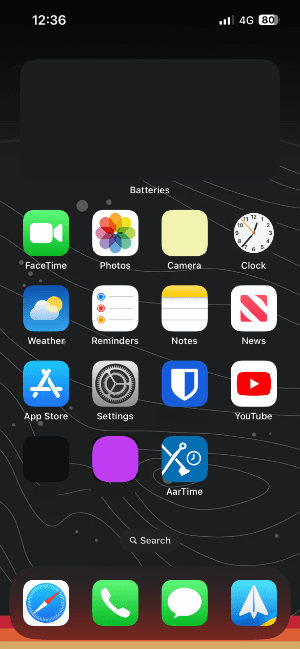
-
After opening this new app, you will have access to the Cannon Timesheet app
Note. If for any reason you are unable to add the app to your home screen, you can use the app in your browser.
Mac & PC
For Mac & PC all that is required is for you to open a web browser app, and browse to aartime.aarsleff.co.uk (opens in a new tab). There is no need to add it to your desktop as you do on mobile, however, feel free to bookmark this page.
Please note that the app does not work in Internet Explorer. Therefore, please use Edge, Chrome, Firefox or Safari.